
AkuCalc integration guide
AkuCalc for BigCommerce
Installation and User Guide
AkuCalc calculates sales tax for your BigCommerce store with your Suite CRM tax engine. Shoppers see the correct tax at checkout. Each new order is also sent to Suite CRM, so your tax records stay up to date.
Version 1.0 · November 2026
1. Before you start
To set up AkuCalc, you need:
- A BigCommerce store, and a store owner or admin login that can install apps and change tax settings.
- Your Suite CRM details from AkuCalc: the Suite CRM URL, username, password and token. If you don't have them, contact AkuCalc support (section 9).
- Your store must sell in the United States or Canada.
Permissions AkuCalc asks for
AkuCalc requests only what it needs:
- Orders: read-only, to read each new order and send it to Suite CRM for your tax records.
- Information & Settings: modify, to connect AkuCalc as your store's tax provider.
2. Install AkuCalc
Step 1. Sign in to your BigCommerce control panel.
Step 2. Go to
Apps › Marketplace and search for AkuCalc. You can also open the AkuCalc page in the BigCommerce App Marketplace.Step 3. Click Get this app or Install.
Step 4. Review the permissions and click Confirm.
Step 5. BigCommerce installs the app and opens the AkuCalc page inside your control panel. During install, AkuCalc automatically:
- connects your store, so you don't need an API token;
- registers AkuCalc as a tax provider for your store, so you don't need a tax provider ID;
- sets up order notifications, so new orders reach Suite CRM.
You can open AkuCalc again at any time from
Apps › My Apps › AkuCalc.3. Connect your Suite CRM account
The AkuCalc page has two sections.
| Section | What to do |
|---|---|
| Big Commerce Details | Shows your store hash. AkuCalc fills this in, and you can't change it. Keep it handy for support requests. |
| Suite CRM Details | Enter your Suite CRM URL, User Name, Password and Token. |
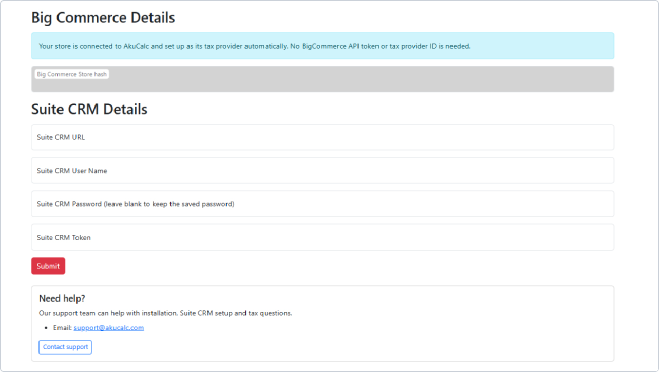
Step 1. Fill in all four Suite CRM fields.
Step 2. Click Submit. The message “Your Suite CRM details have been saved.” confirms the details are stored.
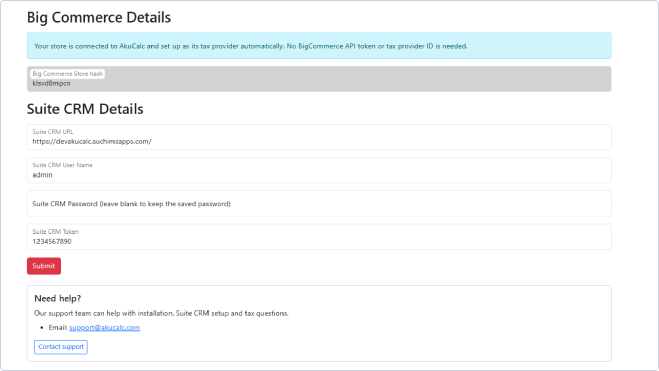
To change your details later, open AkuCalc again, edit the fields and click Submit. Leave the password field blank to keep the saved password.
4. Turn on AkuCalc as your tax provider
BigCommerce only uses AkuCalc for tax after you turn it on in your tax settings. Until then, your store keeps using its Basic Tax rules.
Step 1. In the control panel, go to
Settings › Tax.Step 2. Find
enlink_tax_values (AkuCalc) in the list of tax providers. It shows the label INSTALLED. Click Configure.Step 3. Under Provider targeting, choose One or more countries and tick United States and/or Canada.
Step 4. Leave the Provider options codes blank unless AkuCalc support gives you codes to use.
Step 5. Click Save. You should see “Your tax provider settings have been successfully updated.”
Step 6 (optional). Click Test connection to check that BigCommerce can reach AkuCalc.
Shoppers with an address outside the countries you selected are still taxed by your Basic Tax rules.
5. Test with an order
- Open your storefront and add a product to the cart.
- Go to checkout and enter a shipping address in a country you selected, for example a US address.
- Check that the Tax line in the order summary shows an amount.
- Place the order. In
Orders › View, open the order and check the tax and grand total.
If the order details show Basic Tax, AkuCalc wasn't used for that order. See Troubleshooting.
6. Using AkuCalc day to day
How tax is calculated
- When a shopper reaches checkout, BigCommerce sends the cart, shipping and address to AkuCalc.
- AkuCalc asks your Suite CRM tax engine for the sales tax and sends it back to BigCommerce. The tax appears at checkout and is saved on the order.
- Tax is shown as one total, which includes state and local tax.
Orders sent to Suite CRM
- When an order is placed, AkuCalc sends it to Suite CRM, so the transaction appears in your tax records.
- If the same order is sent again, AkuCalc updates the existing record in Suite CRM instead of creating a duplicate.
Things to keep in mind
- Tax on an order is set at checkout. If you edit an order afterwards, BigCommerce doesn't recalculate the tax.
- Keep your Suite CRM password and token up to date in AkuCalc. If they change, enter the new ones (section 3).
7. Troubleshooting
| What you see | What to do |
|---|---|
| “We could not identify your store.” | Open AkuCalc from Apps › My Apps in your BigCommerce control panel, not from a saved link or bookmark. |
| “This store is not connected yet.” | The install didn't finish. Uninstall AkuCalc, then install it again from the App Marketplace. |
| “AkuCalc could not save the connection for this store.” | Try installing again. If it happens again, contact support with your store hash. |
| Order shows Basic Tax, or tax is 0 | Check that enlink_tax_values is turned on in Settings › Tax and that the shopper's country is selected (section 4). Check that your Suite CRM details are saved (section 3). |
| Tax at checkout looks wrong | Check the shipping address and product prices. Then contact support with the order ID and a screenshot of the checkout. |
| Order doesn't appear in Suite CRM | Check your Suite CRM details in AkuCalc. Contact support with the order ID. |
8. Uninstall AkuCalc
- Go to
Settings › Taxand switch your tax provider back to Basic Tax (or another provider), so checkout keeps calculating tax. - Go to
Apps › My Apps, find AkuCalc and click Uninstall. - Confirm. AkuCalc stops calculating tax and stops receiving new orders. Orders already sent to Suite CRM stay in your records.
AkuCalc doesn't add any scripts to your storefront or checkout, so nothing on your storefront needs cleaning up after you uninstall.
9. Get support
Email us at support@akucalc.com, or click Contact support in the Need help? box on the AkuCalc page.
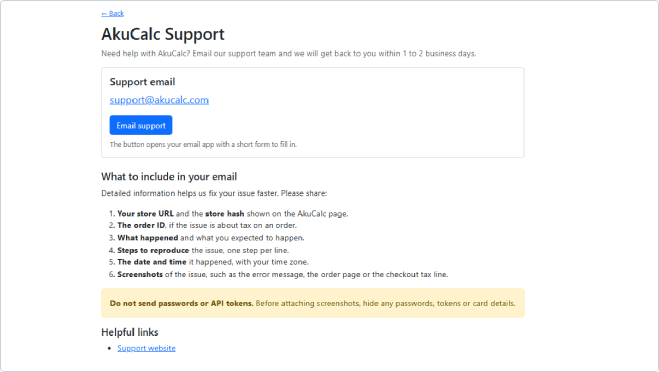
To help us fix the issue faster, please include:
- Your store URL and the store hash shown on the AkuCalc page.
- The order ID, if the issue is about an order.
- What happened and what you expected.
- The steps that led to the issue.
- The date and time it happened, with your time zone.
- Screenshots of the error, the order page or the checkout tax line.
Never send passwords or API tokens. Hide them, and any card details, in your screenshots.